Showing posts with label Turorials. Show all posts
Showing posts with label Turorials. Show all posts
Tuesday, September 1, 2015
How to move apps to sd card on htc desire 310

You want save your apps on the sd card ?
You want move apps to sd card ?
You have a smartphone with jelly bean ?
You have a smartphone with androdi 4.1, 4.2 or 4.3 ? And you can't move apps to sd card ?
You want move apps to micro sd card ?
You have a HTC Desire 310 ? hahaha
I have the solution for you ..
We will use GL to SD

Free SMS Android
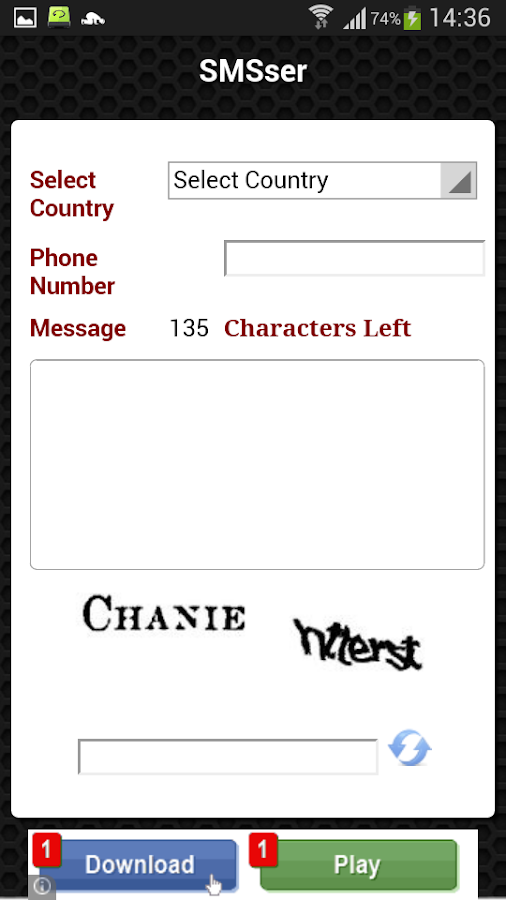
 Sites that allow you to send free sms have become spams. Today, I propose for you an application from Tunisian origin which allow sending free sms to any number in the world.
 SMSser
How to easily root an Android device
Rooting is the Android equivalent of jailbreaking, a means of unlocking the operating system so you can install unapproved (by Google) apps, update the OS, replace the firmware, overclock (or underclock) the processor, customize just about anything, and so on.
Of course, for the average user, rooting sounds like -- and can be -- a scary process. After all, "rooting" around in your smartphone's core software might seem like a recipe for disaster. One wrong move and you could end up with bricked handset.
 Thankfully, there's a new Windows utility that makes rooting a one-click affair: Kingo Android Root. It's free, and based on my initial tests with a Virgin Mobile Supreme, it works like a charm. (Be sure to check the compatibility list before you proceed, keeping in mind that although the Supreme wasn't on it, the utility had no problem with it.) Here's how to get started.
Step one: Download and install Kingo Android Root.

Screenshot by Rick Broida/CNET
Step two: Enable USB debugging mode on your phone.
If it's running Android 4.0 or 4.1, tap Settings, Developer Options, then tick the box for "USB debugging." (You may need to switch "Developer options" to On before you can do so.) On Android 4.2, tap Settings, About Phone, Developer Options, and then tick USB debugging." Then tap OK to approve the setting change.
On Android 4.3 and later (and some versions of 4.2), tap Settings, About Phone, then scroll down to Build Number. Tap it seven times, at which point you should see the message, "You are now a developer!"
Step three: Run Android Root on your PC
then connect your phone via its USB sync cable. After a moment, the former should show a connection to the latter.
kingo-root-updated.jpg
Screenshot by Kingo
Step four: Click Root, then sit back and wait while the utility does its thing. The aforementioned Supreme took all of about two minutes, including the automated reboot at the end.
And that's all there is to it. If you decide you want to reverse the process, just run Android Root again, connect your phone, then click Remove Root.
With that done, now you can take advantage of options like USB On-the-Go to make your unexpandable phone expandable. Hit the comments to share your favorite tricks for a rooted Android phone.
Source: http://www.cnet.com/how-to/how-to-easily-root-an-android-device/
Read more »
Of course, for the average user, rooting sounds like -- and can be -- a scary process. After all, "rooting" around in your smartphone's core software might seem like a recipe for disaster. One wrong move and you could end up with bricked handset.
Thankfully, there's a new Windows utility that makes rooting a one-click affair: Kingo Android Root. It's free, and based on my initial tests with a Virgin Mobile Supreme, it works like a charm. (Be sure to check the compatibility list before you proceed, keeping in mind that although the Supreme wasn't on it, the utility had no problem with it.) Here's how to get started.Step one: Download and install Kingo Android Root.

Screenshot by Rick Broida/CNET
Step two: Enable USB debugging mode on your phone.
If it's running Android 4.0 or 4.1, tap Settings, Developer Options, then tick the box for "USB debugging." (You may need to switch "Developer options" to On before you can do so.) On Android 4.2, tap Settings, About Phone, Developer Options, and then tick USB debugging." Then tap OK to approve the setting change.
On Android 4.3 and later (and some versions of 4.2), tap Settings, About Phone, then scroll down to Build Number. Tap it seven times, at which point you should see the message, "You are now a developer!"
Step three: Run Android Root on your PC
then connect your phone via its USB sync cable. After a moment, the former should show a connection to the latter.
kingo-root-updated.jpg
Screenshot by Kingo
Step four: Click Root, then sit back and wait while the utility does its thing. The aforementioned Supreme took all of about two minutes, including the automated reboot at the end.
And that's all there is to it. If you decide you want to reverse the process, just run Android Root again, connect your phone, then click Remove Root.
With that done, now you can take advantage of options like USB On-the-Go to make your unexpandable phone expandable. Hit the comments to share your favorite tricks for a rooted Android phone.
Source: http://www.cnet.com/how-to/how-to-easily-root-an-android-device/
How to reduce the brightness of your smartphone even lower minimum ?
.webp)
Screen Filter and is available on the Play Store.
Once installed, if you try to open the application, nothing will happen in appearance, except the appearance of a notification in your dedicated bar. If you press this bar, you then arrive on the application.
.webp)
Once the right level found with the text, just press "Enable screen filter" to implement the desired changes! To restore the minimum brightness, simply tap the notification created by the application.

Top 5 apps to boost your phone
 Pour accélérer votre smartphone et libérer de la mémoire vive (RAM), on peut opter pour plusieurs méthodes. D'abord on peut opter pour la fermeture de chaque application qu'on l'utilise pas. Aussi, on peut Désinstaller les applications peu utilisées. De plus, on peut désactiver la synchronisation des données, surtout celles liées à Google.
 Pour plusieurs, ces tâches
sont compliquées et gênent. La solution est facile, les développeurs leur ont permis de tout faire grâce à des applications polyvalents. En effet, avec une seule touche on peut libérer de la mémoire vive, effacer les caches des applications, arrêter les applications non utilisées et d'autres tâches ..
On va évoquer les 5 meilleurs applications qui permettent tout ça.
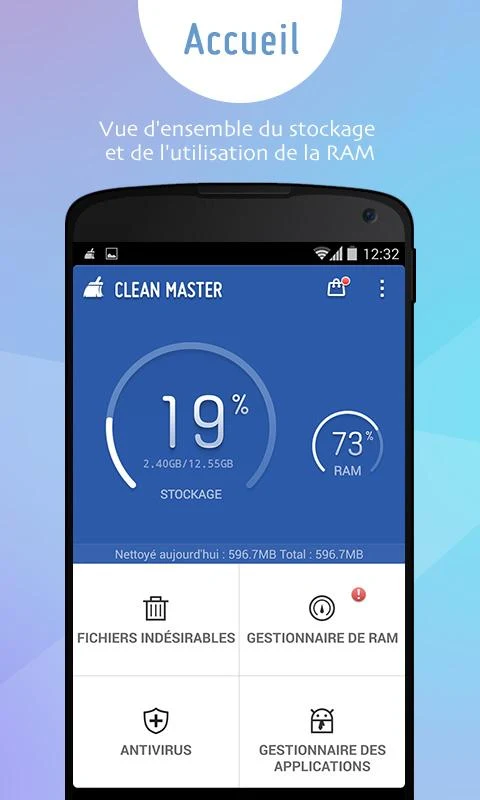 1) Clean Master
L'optimiseur le plus fiable du monde, Clean Master, aide à nettoyer plus 400 millions d'appareils !
Quand avez-vous besoin de nous ?
CM est parfait pour vous si votre appareil gèle, s'il a cessé de jouer des jeux normalement, s'il devient trop chaud pour le tenir en main, ou si vous souhaitez libérer de l'espace pour stocker plus de photos ou de chansons.
2) Advenced Task Manager
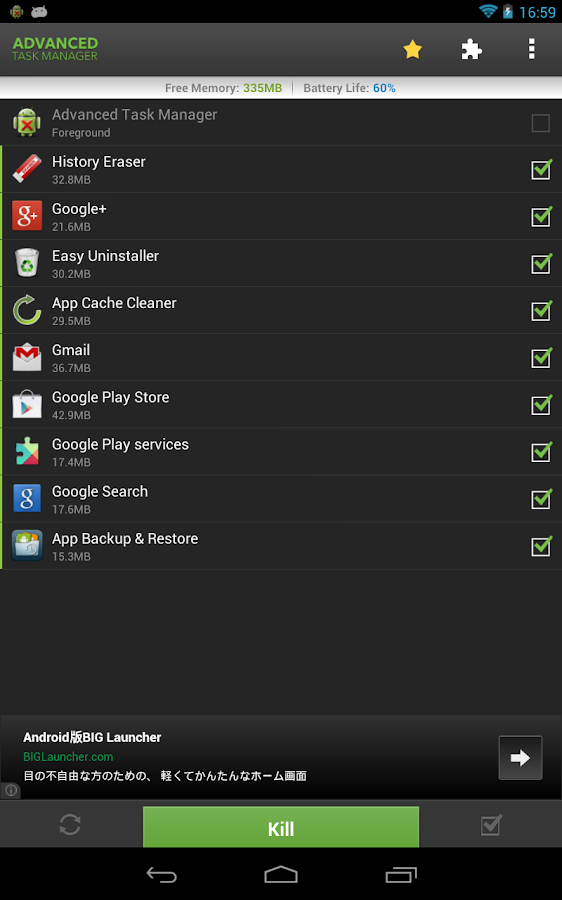 Gestionnaire avancé de tâches, Gestionnaire de Tâches, Libération de mémoire, accélération du téléphone, augmentation de la durée de vie de la batterie.
3) Advanced Task Killer
Advanced Task Killer également connu comme ATK qui est n ° 1 tâche de gérer l'application. Il est un outil pour supprimer les applications et stimuler la mémoire. -Liste noire -Un widget robinet Auto-kill -Personnaliser article hauteur ATK est souvent utilisé pour tuer l'application et de la mémoire propre. Nous faisons suggèrent les gens utilisent ATK tuer manuellement les applications à la place de l'application de mise à mort de l'automobile.
4) Android Booster
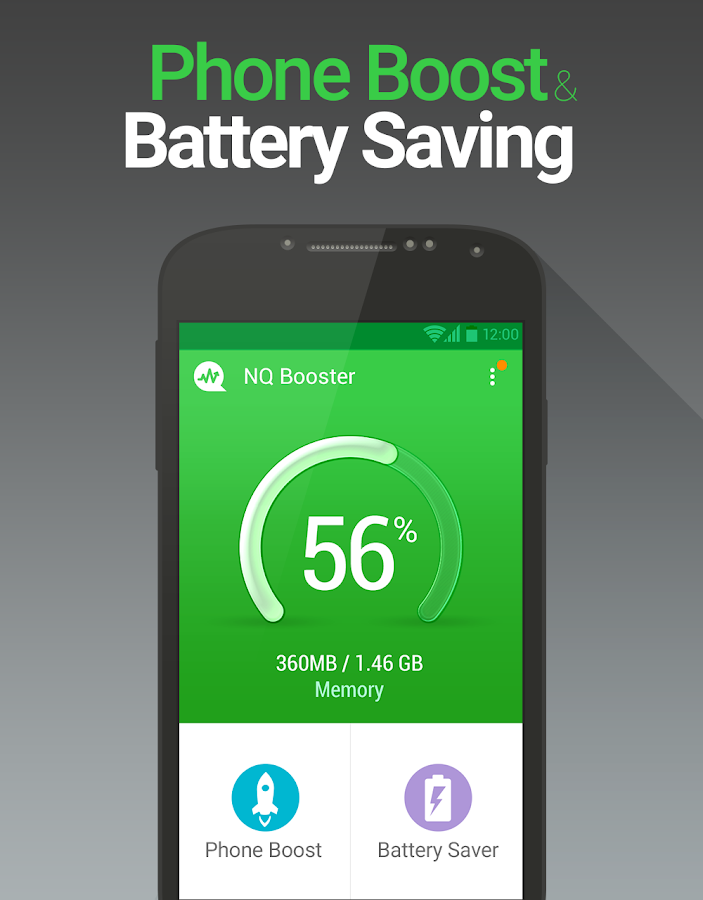 NQ Android Booster FREE est l'Android app Store Optimisation Lecture Google et utilisé par plus de 4 millions d'utilisateurs pour améliorer les performances de leur Android en quelques secondes. Maintenant le télécharger gratuitement pour optimiser vos androïdes!
5) Smart Booster
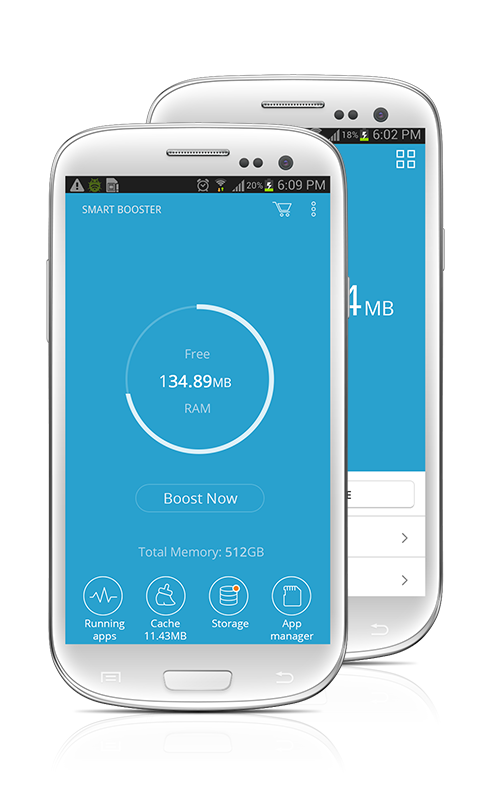
Le meilleur outil d'optimisation. C'est l'ancien Smart RAM Booster. Caractéristiques:
► RAM Booster: petit widget pour augmenter adaptativement mémoire de l'appareil de n'importe où
► Nettoyeur rapide de cache: un clic de nettoyer le cache
► Nettoyeur rapide de carte SD: efficacement effacez des fichiers les inutiles
► Gestionnaire d'application avancée: optimiser vos appareils par hiberner, désactiver des application ou les enlever.
Recommandé par AddictiveTips . Hotest Applications de AppBrain .


How to Capture a screenshot on HTC
Pour prendre des screenshots ou bien des captures d'écran sur votre HTC Desire 310,on
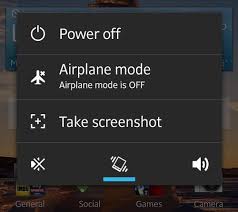 trouve deux solutions:
1) Soit utiliser les applications qui se trouvent dans le play store.2) Soit utiliser la méthode qui se trouve généralement dans tous les téléphones dans laquelle on utilise les boutons externes du téléphone.
How ?
Il suffit juste de cliquer sur deux boutons; celle du fermeture + celle d'accueil (tactile).


How to change android icon - NO ROOT -
The icon packs are little more customization that can bring a lot to the screen of your smartphone. Titanic work of developers / designers, a pack gathers at least over 500 icons from and is nourished by input from users. This selection includes the icon packs that pleased the community on all points: aesthetics, compatibility, frequent updates.



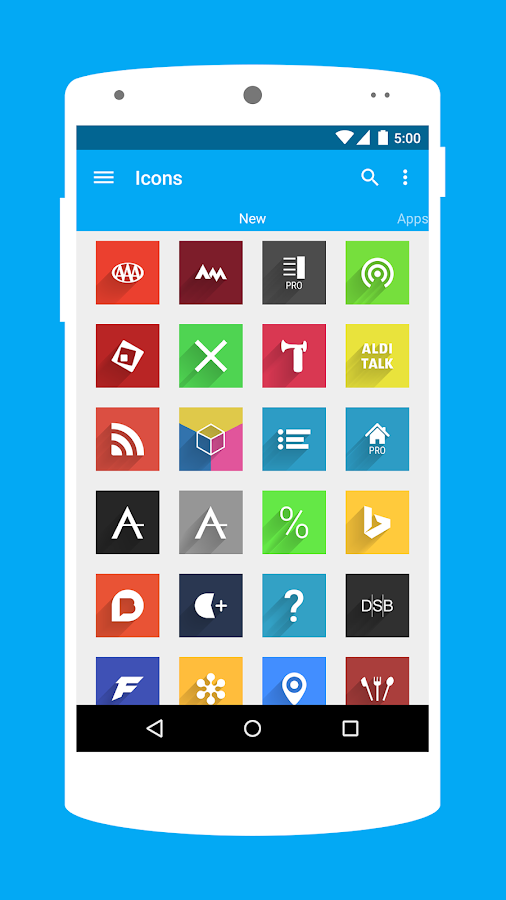
FLATRO
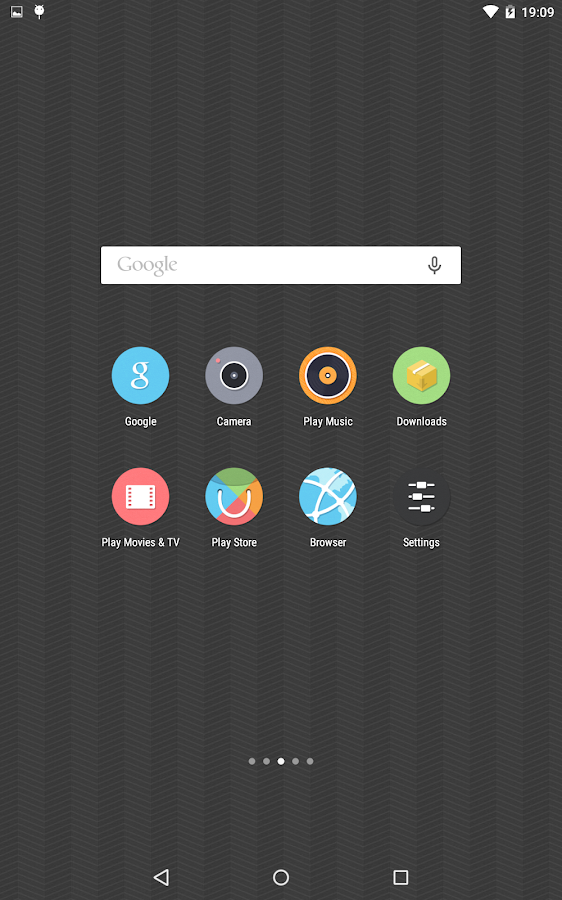
NUMIX
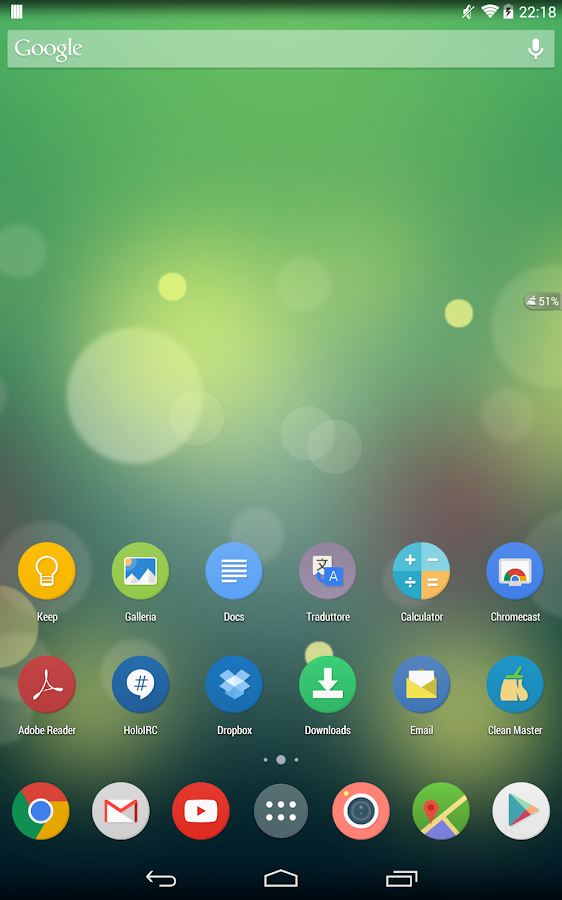
Read more »
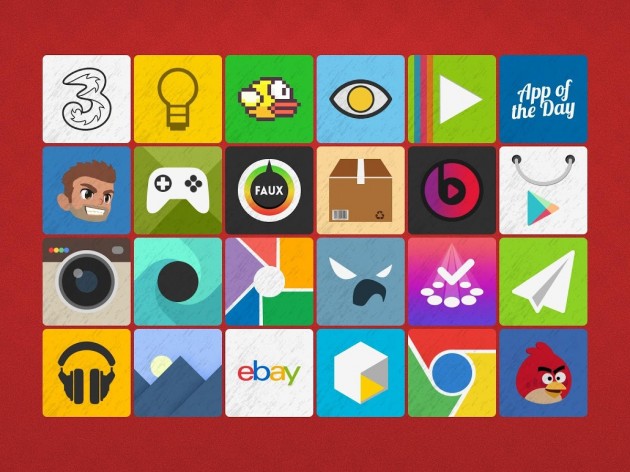
To install icons replacing the original ones, you must use an alternate launcher: Nova, Apex, Aviate ... These launchers are free. An icon pack may not be compatible with the launcher you use, so be careful list of compatible launchers we accumulated directly in the article!
We also invite you to download the alternate launcher of your choice (if it is not already) in order to install these beautiful icon packs! Examples compatible with most packages presented:
Then go to the display settings of your launcher, or (as the packs) in the parameters of the package to implement the icons. How you can see, it's easy!
Of course, this selection is far from exhaustive, since we chose to stop in 10 packs. There are a myriad on the Play Store, and you may have had a crush on a missing package this selection. After all, the choice of an icon pack responsibility of tastes! To make it more relevant this selection, we chose to do a survey in advance on social networks where you were likely to participate. Here are the packages that you mentioned, and those that caught our attention.
FLATRO
NUMIX
Charge your smartpone faster
Why do I recharge my battery every day?
 In these days, there's no more nokia 3310 which lasts a week! We have to charge our phones every day at least once. This is not due only to the horrible consumption of mobile data or Wi-Fi, but also to other factors which are:

 Recharge your smartphone in good catches of electrics, again, it is not recommended to use the USB ports of your PC to recharge smartphones.
Read more »
 In these days, there's no more nokia 3310 which lasts a week! We have to charge our phones every day at least once. This is not due only to the horrible consumption of mobile data or Wi-Fi, but also to other factors which are:
 * Leave the phone in standby
* The Google applications in the background
* Recent applications * Excessive brightness
* Apps using much RAM
The solution?
In fact, there are no exact solutions so that we do not charge our battery more than once a day, but we can extend the life of the battery, or even lengthen the duration of each recharge, so that we may at least charge the battery overnight to another (: p).
Indeed, we will opt for simple and easy tips:
The charger:

We need to recharge our smartphones with chargers provided by default supplier, or an original charger for our model. Do not use chargers from other brands only in urgent cases.
Source:
 Recharge your smartphone in good catches of electrics, again, it is not recommended to use the USB ports of your PC to recharge smartphones.
Recents apps:
Close all energy-intensive applications and RAM.
Do not touch your smartphone:
It is imperative that the use of their smartphones during recharging weakens the capacity of the battery, on any use of mobile or wifi data. It is recommended that you put your smartphone in airplane mode.
Finally, we also recommend you to buy a Powerbank for urgent cases in your days. A more 5000mAh Powerbank is very useful for you will not see the state or the percentage of the battery.
How to copy text from PC and paste it in your smartphone ?
Sometimes you need to copy text from your pc and paste it into your phone? And you think to make a word file to do this would! But nooooo it takes time!
So ClipSynch is there to do all this work!
With ClipSynch, you can
copy your pc text and paste it into your phone or in the opposite direction.
Enjoy it:
Tutoriel:
1) Download ClipSynch in your smartphone
2) Download ClipSynch in your pc
3) Create a new server with the ip adress in your pc
4) Save profile and enjoy it


Read more »
So ClipSynch is there to do all this work!
With ClipSynch, you can
copy your pc text and paste it into your phone or in the opposite direction.
Enjoy it:
Tutoriel:
1) Download ClipSynch in your smartphone
2) Download ClipSynch in your pc
3) Create a new server with the ip adress in your pc
4) Save profile and enjoy it
How to set up Face lock in your smartphone ?


- Tap the Settings icon to get to the Settings app
- Scroll down to Personal and then tap on Security
- Tap on Screen Lock and choose:
a. None – for no locking at all
b. Slide- for the typical slide to unlock
c. Face Unlock – to set the Face Unlock feature
d. Pattern – to set a Pattern unlock
e. PIN – to set a standard four digit PIN unlock
f. Password – to set a more secure password to unlock

Choose Face Unlock. Now you are ready to have your Android phone capture your face to unlock the phone.
- Tap Continue
- Move a little away from the front facing camera so your face fits in the Show Your Face screen.
- Center your face in the outlined area marked “put your face here.”
- You will receive a Face Captured screen if the Face Unlock setup was successful


Once the Face Unlock is set to your face, you will be prompted to now set up a backup lock. In case the phone does not recognize you (this can happen for a bunch of reasons) it will revert to another method for secure unlocking of the phone.


- Choose one of the two backup methods listed; Pattern or PIN
- For a Pattern unlock, slide your finger to connect at least four dots in any pattern of your choosing.
- Repeat the pattern to confirm the choice.
- For a PIN unlock, simply input a four digit PIN – repeat to confirm.


How to move apps to micro sd card
 You bought a phone with low storage ?
 You bought a phone with 4 GB internal storage ?
You bought a phone which you can't move apps to sd card ?
You want install your apps to sd card ?
You want use your micro sd card ?
You might be interested in Gaming tests
You want save your apps on the sd card ?
You want move apps to sd card ?
You have a smartphone with jelly bean ?
You have a smartphone with androdi 4.1, 4.2 or 4.3 ? And you can't move apps to sd card ?
You want move apps to micro sd card ?
You have a HTC Desire 310 ? hahaha
I have the solution for you ..
Just download GL to SD
Surely your phone should be rooted
You can use this tutorial too ..
If any thing is not clear, contact me in my Facebook page ..
Good luck
How to capture a time lapse with your smartphone ?
 Time-lapse photography is a technique whereby the frequency at which film frames are captured (the frame rate) is much lower than that used to view the sequence. When played at normal speed, time appears to be moving faster and thus lapsing.
  For example, an image of a scene may be captured once every second, then played back at 30 frames per second; the result is an apparent 30 times speed increase. Time-lapse photography can be considered the opposite of high speed photography or slow motion.
 The best apps now to make great time-lapse is
Lapse It
It will allow as much shooting as the device can hold, and if you experience some shake or unexpected interruptions like people waking in front of the shot, you can simply keep going and trim out the time leading up to the problem.
You can shoot as fast as 10 frames per second, although that's not recommended for longer periods, as the sheer amount of data creates a longer rendering process with little advantage, and has a tendency to create confusion on playback for the device.
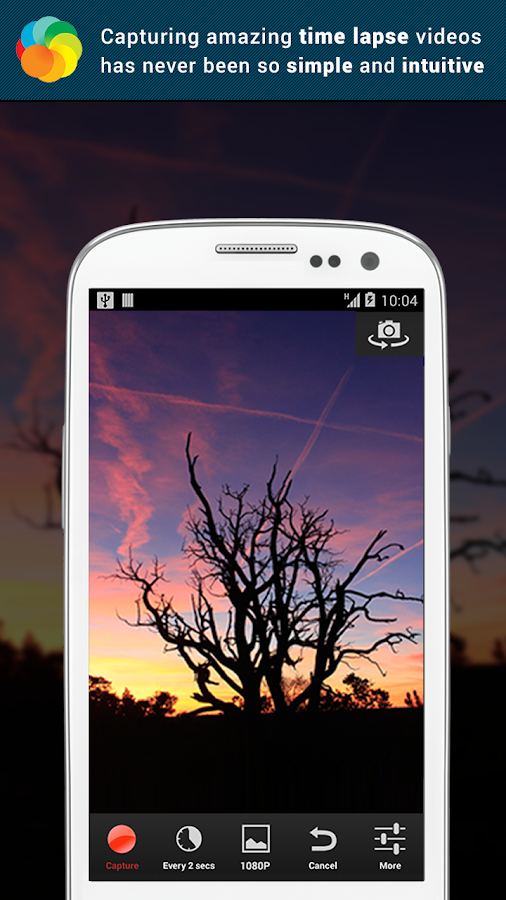
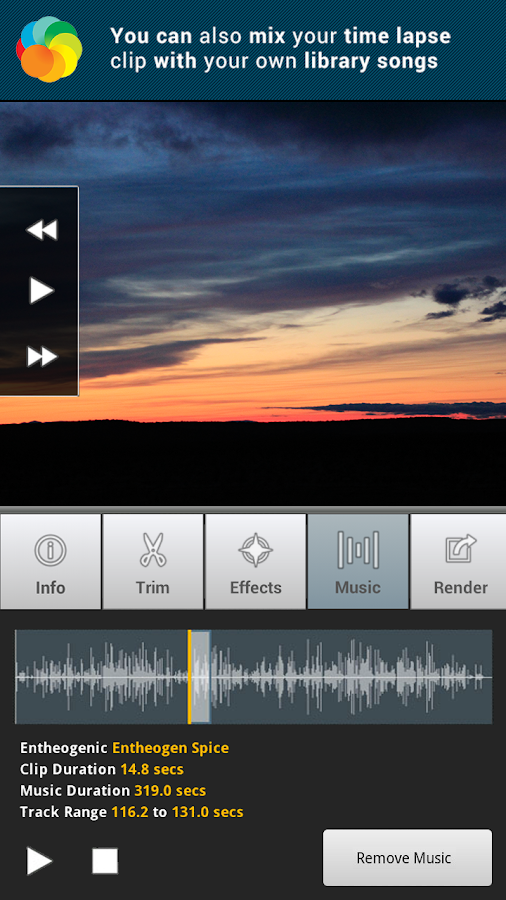 Along with trimming, Lapse It allows a few nice light filters to enhance the image and allows multiple exports of your original image batch so you can fine tune and get the desired result. It even can add music from your collection.
Note that a free version is available for trying out the app, but
it shoots lower-resolution images.
Tutorial
Subscribe to:
Posts (Atom)